
Hi Awesome Pianist!
I know login pages can feel confusing sometimes,
especially because things on the internet seem to be constantly changing.
So I put together this simple, step-by-step guide to walk you through it.
Because everyone has a different device,
with different configurations, and different browsers,
your screen may look a little different from what you see here.
If you are unable to follow the directions on this page,
please have someone who is there with you (and can see what you're seeing) to help you through them.
IMPORTANT
There are multiple options shown on this page.
You will NOT follow the directions for each action,
only whatever applies to your individual situation.
PLEASE READ THE ENTIRE PAGE TO FIND
THE INSTRUCTIONS THAT WORK FOR YOU
Now let's get you logged in...
First, go to the login page: https://members.thepianokeys.com
You will see a page that looks like this or similar.
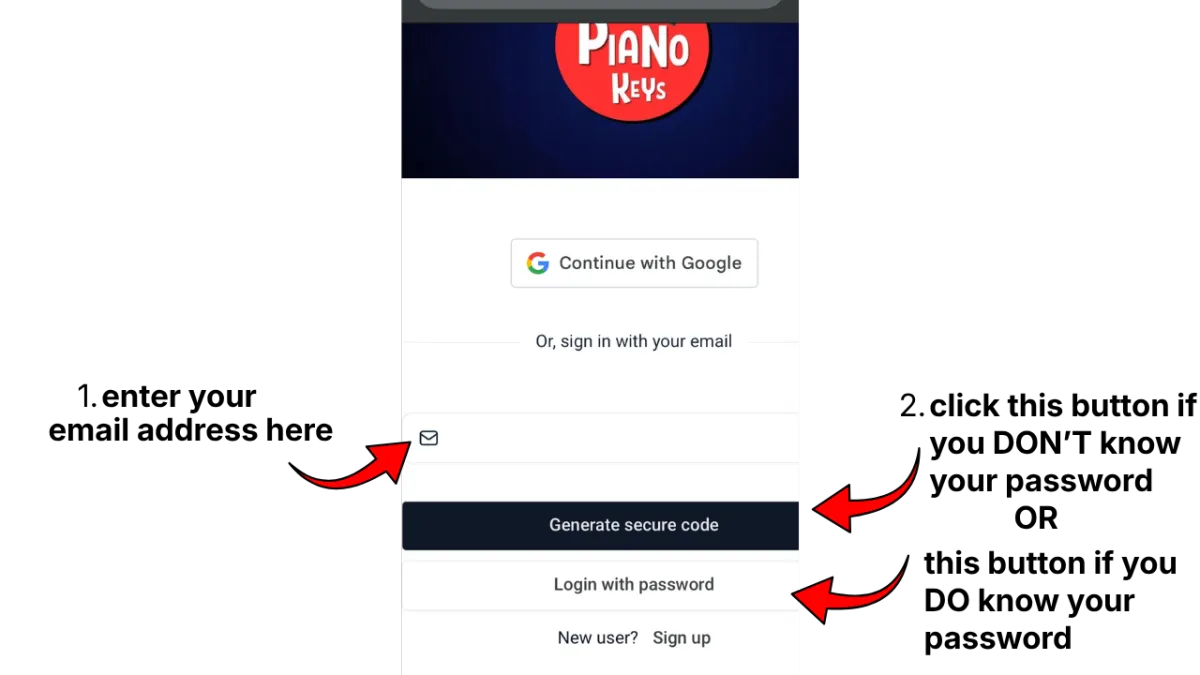
Follow the steps for either Option 1 or Option 2 on this page.
Option 1: Login with password
Option 2: Generate secure code
(note: Option 2 is easier, but some people prefer to use a password)
Option 1: Login with password
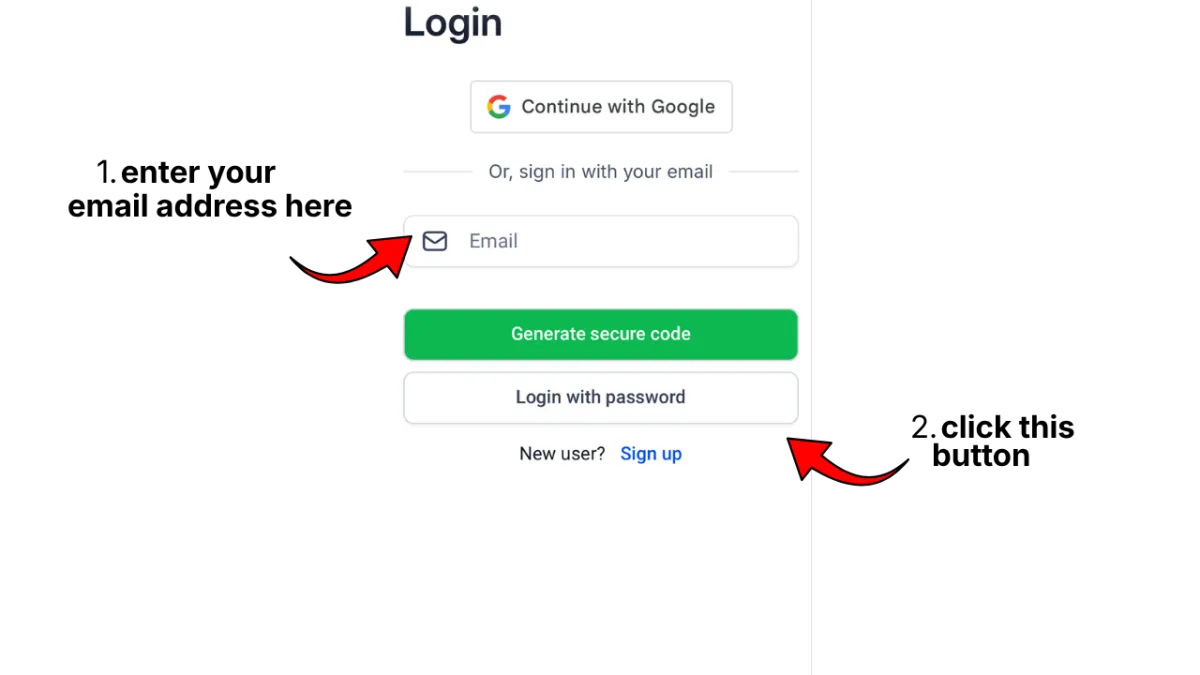
You will then see a page that looks like this or similar.
You may need to enter your password again.
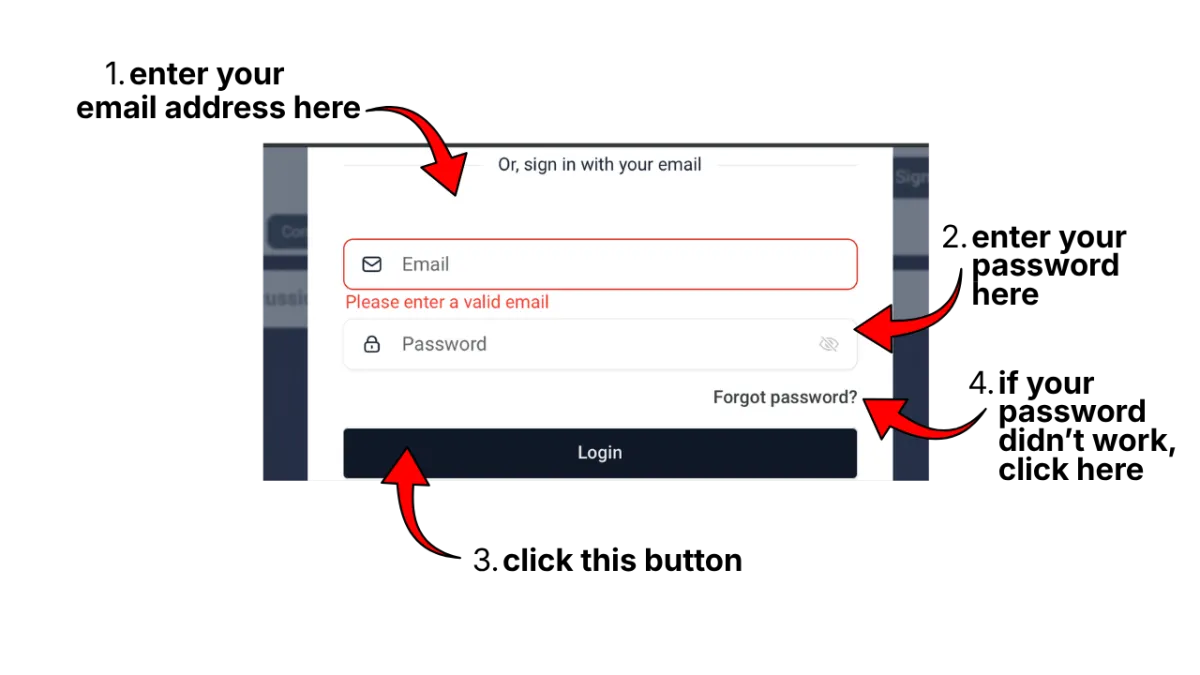
If your password didn't work you will need to reset it.
Make sure that your email address is entered correctly.
Then click the words "Forgot password".
You will see a page that looks like this or similar.
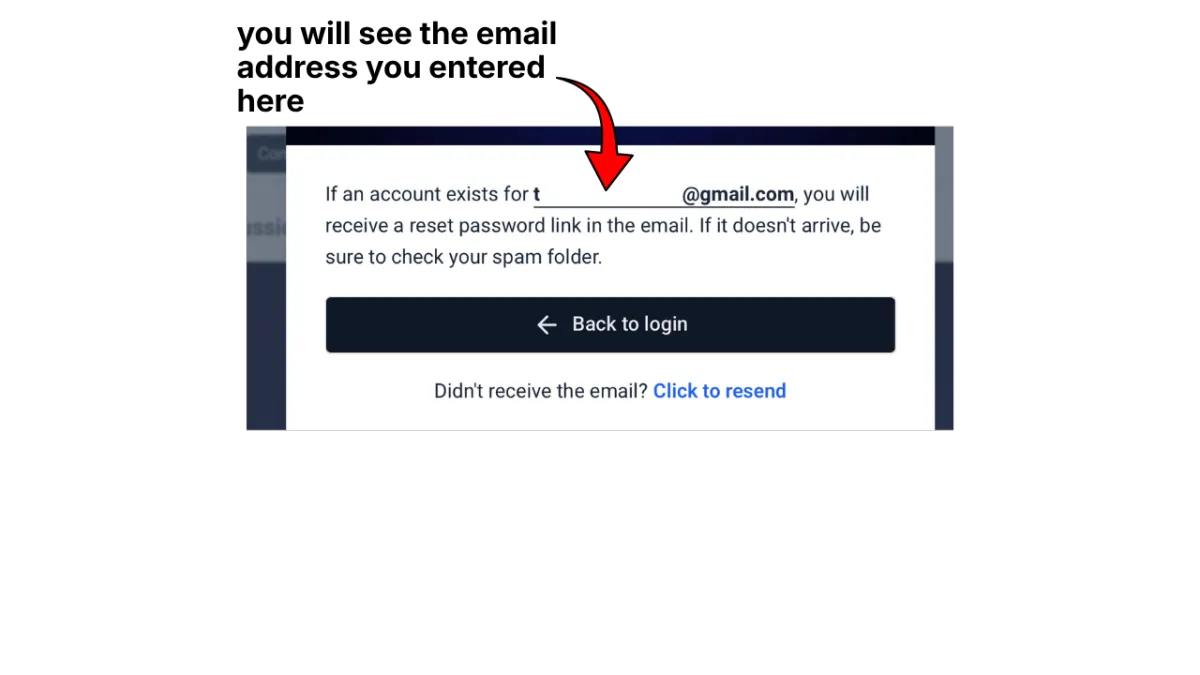
KEEP THIS PAGE OPEN
Go check your email.
Look for a new email from The Piano Keys
with a link to reset your password.
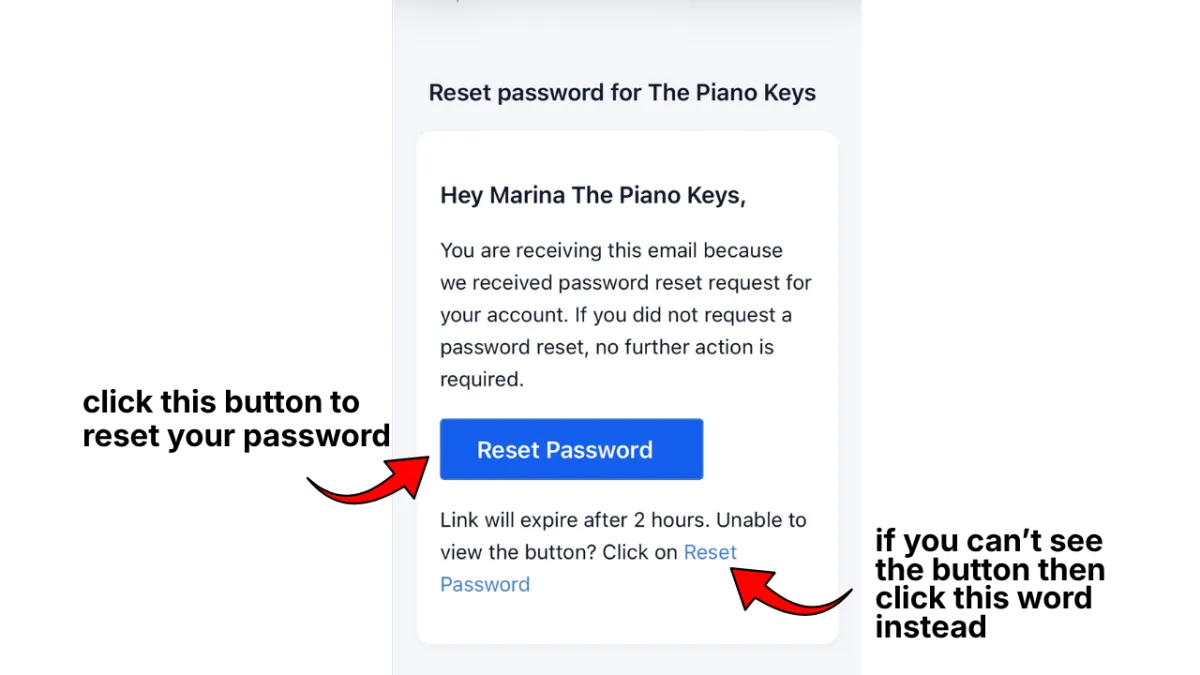
Open that email. It will look something like this.
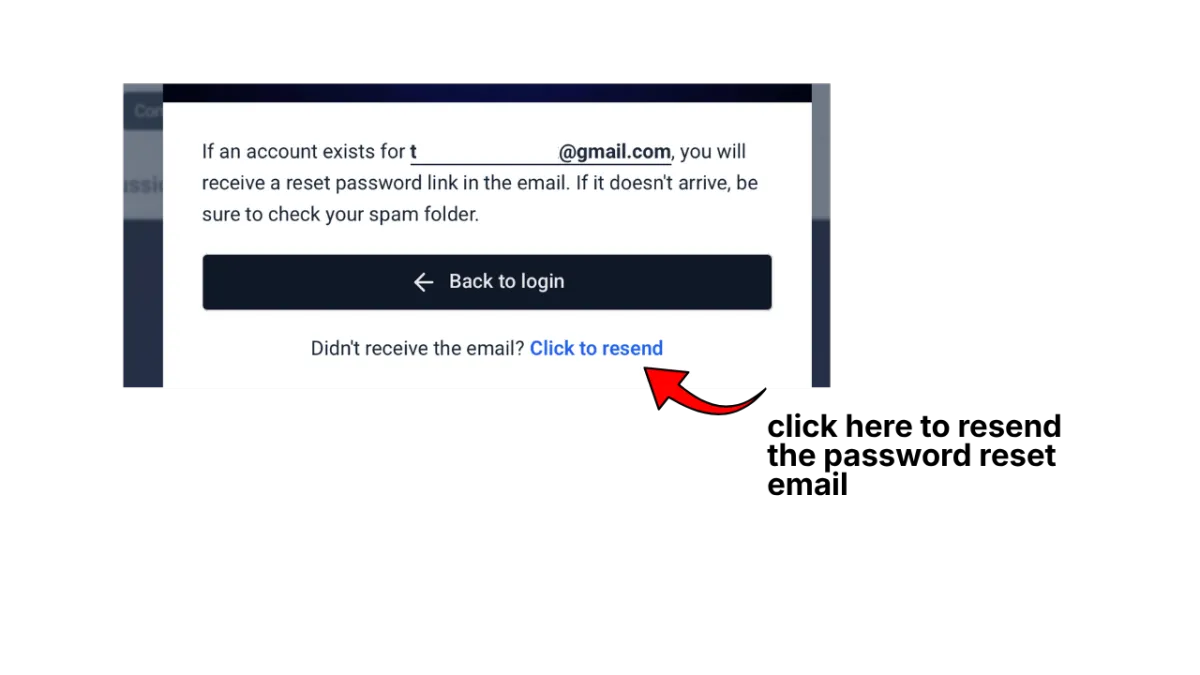
IF YOU DON'T SEE AN EMAIL
Go back to the login page that you kept open.
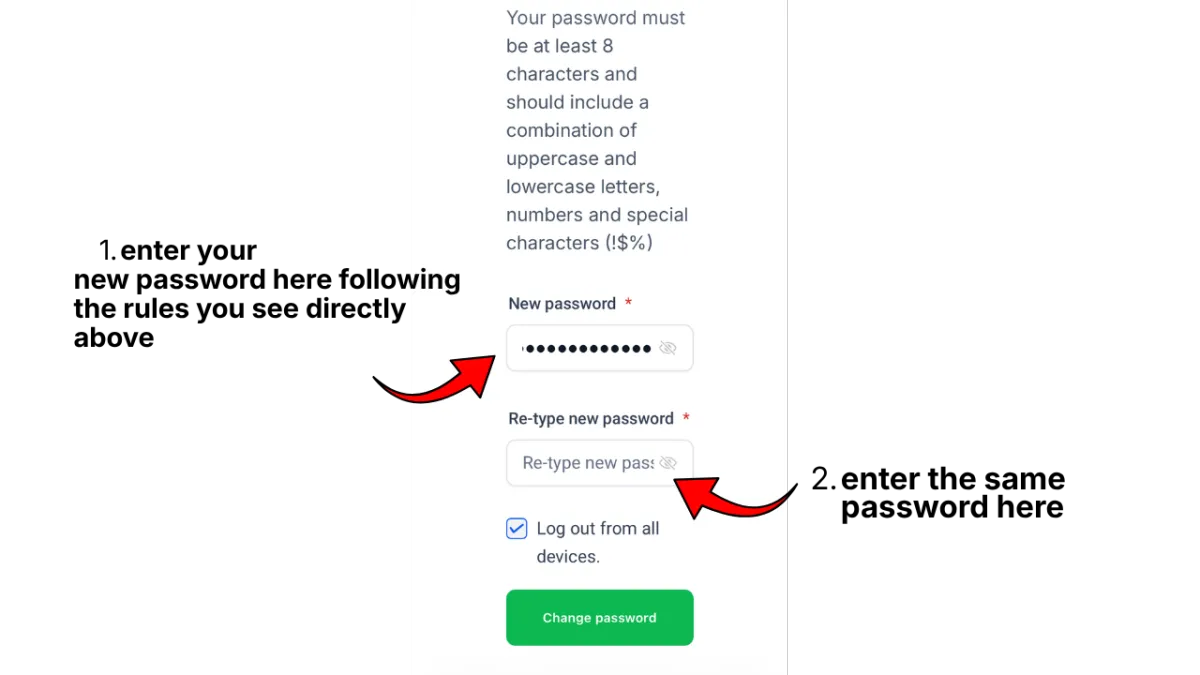
After you click the link in the email,
you will see a page that looks like this or similar.
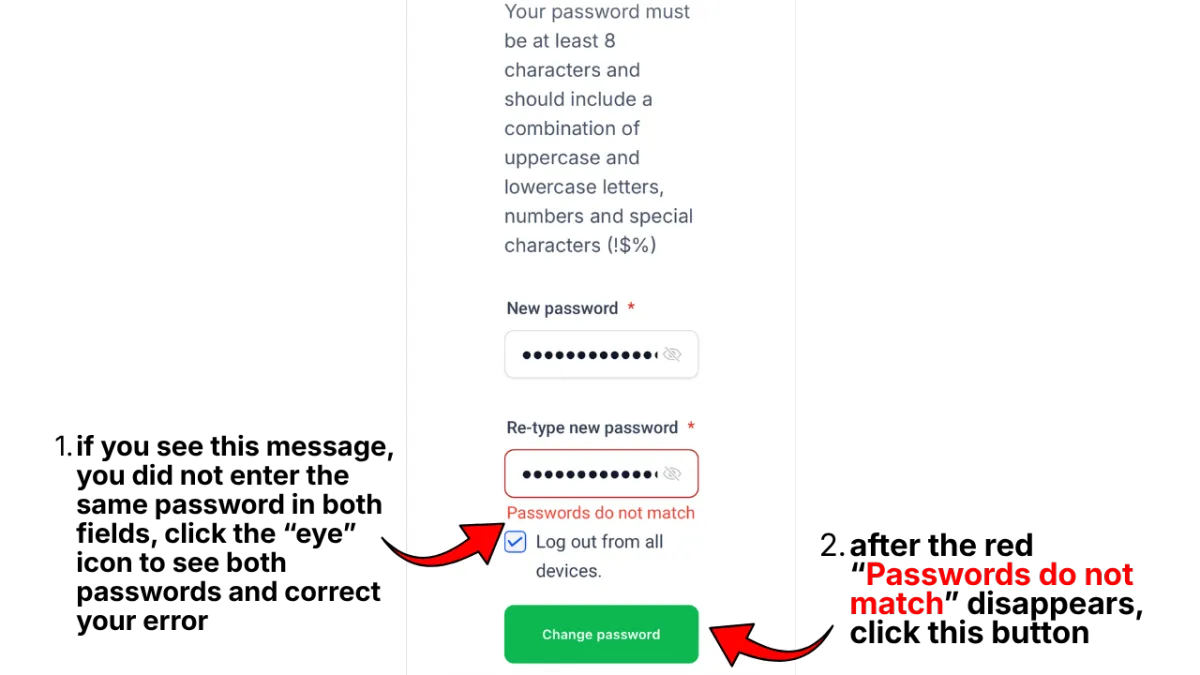
DID YOU SEE A RED MESSAGE LIKE THE ONE BELOW?
Important: Write your new password down somewhere safe
— like a notebook, post-it, or the notes app on your phone —
so you have it ready the next time you want to log in.
If you do lose it, no worries! Just follow the steps above to set a new password.
Option 2: Generate secure code
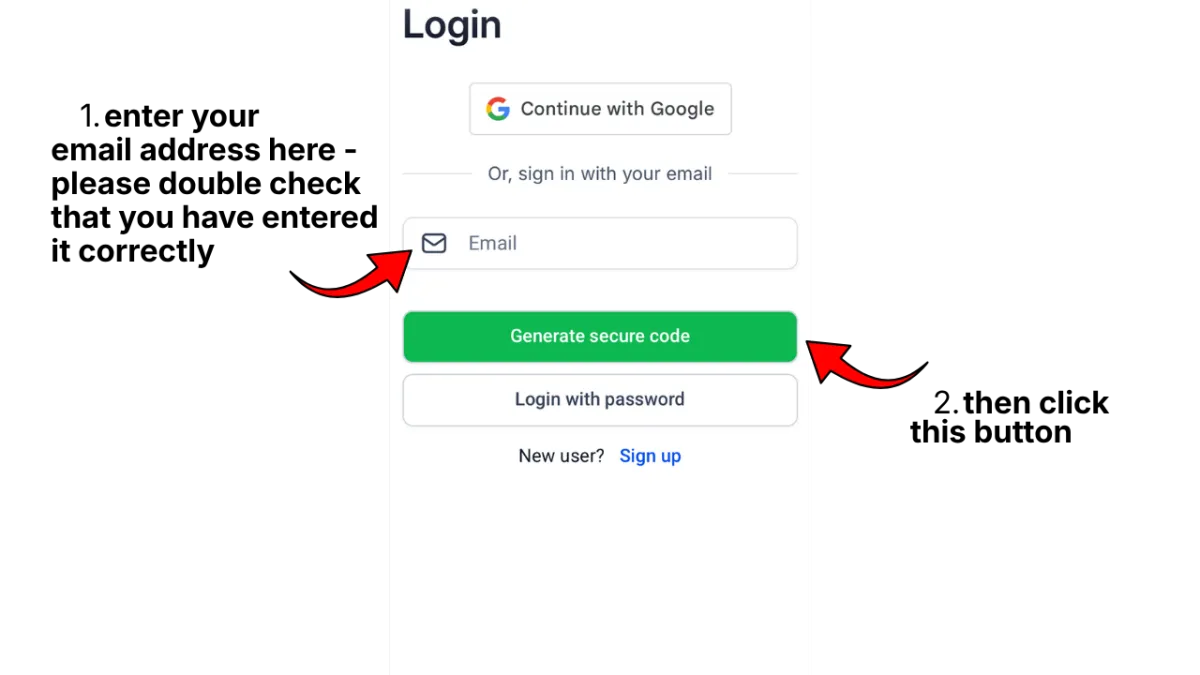
You will then see this page or something similar.
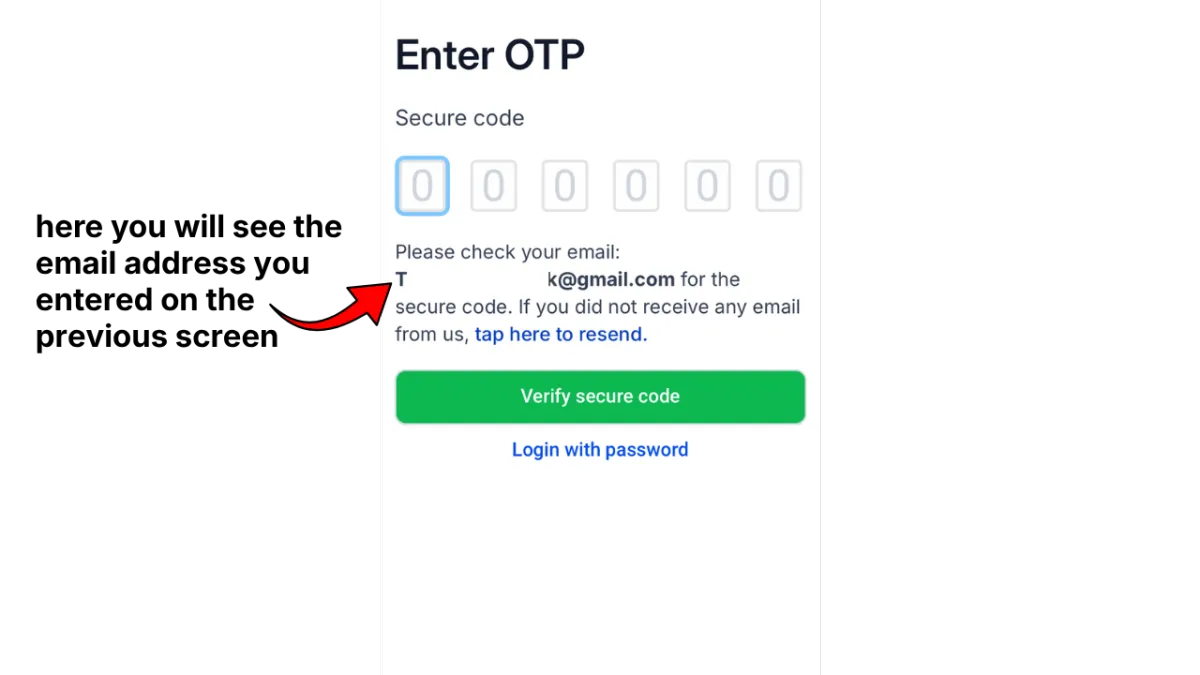
Important: Keep this page open in your browser.
Don't close it — you'll come back to it in a moment.
Go to your email and look for a new email from The Piano Keys.
If you don't see the email right away, check your spam or junk folder, just in case.
*If you still don't see an email, go back to the login page and click "tap here to resend."
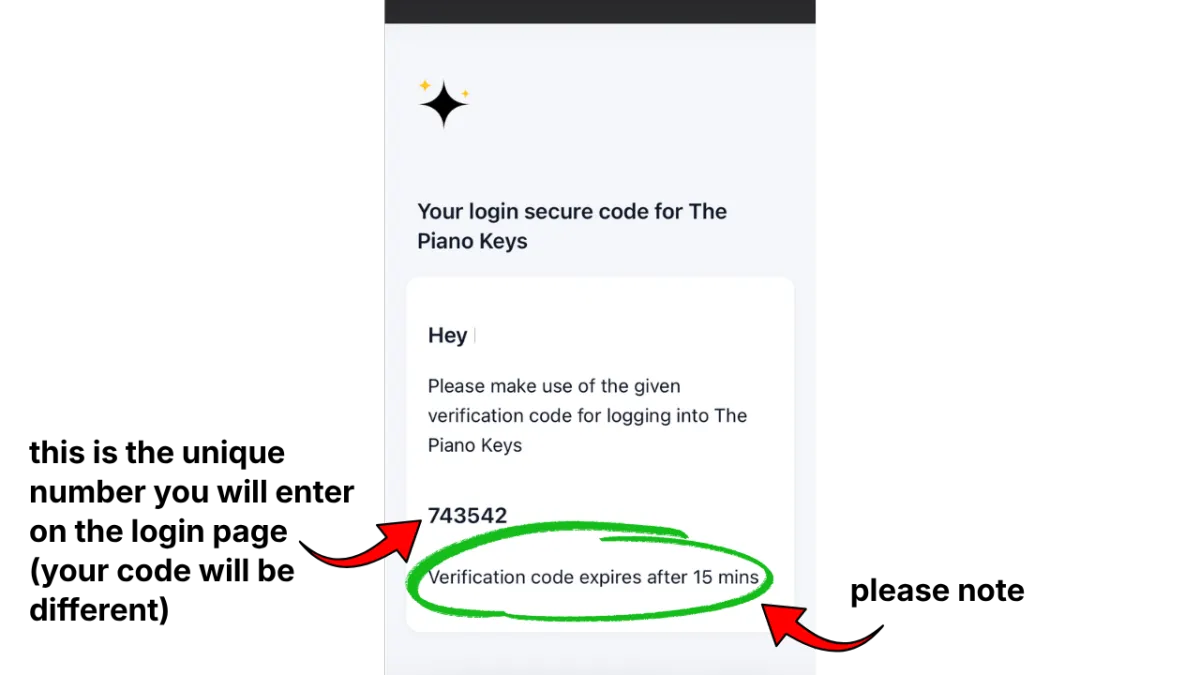
Open that email. Inside, you'll see a 6-digit number
(a code made up of 6 digits). It will look something like this.
Copy that number.
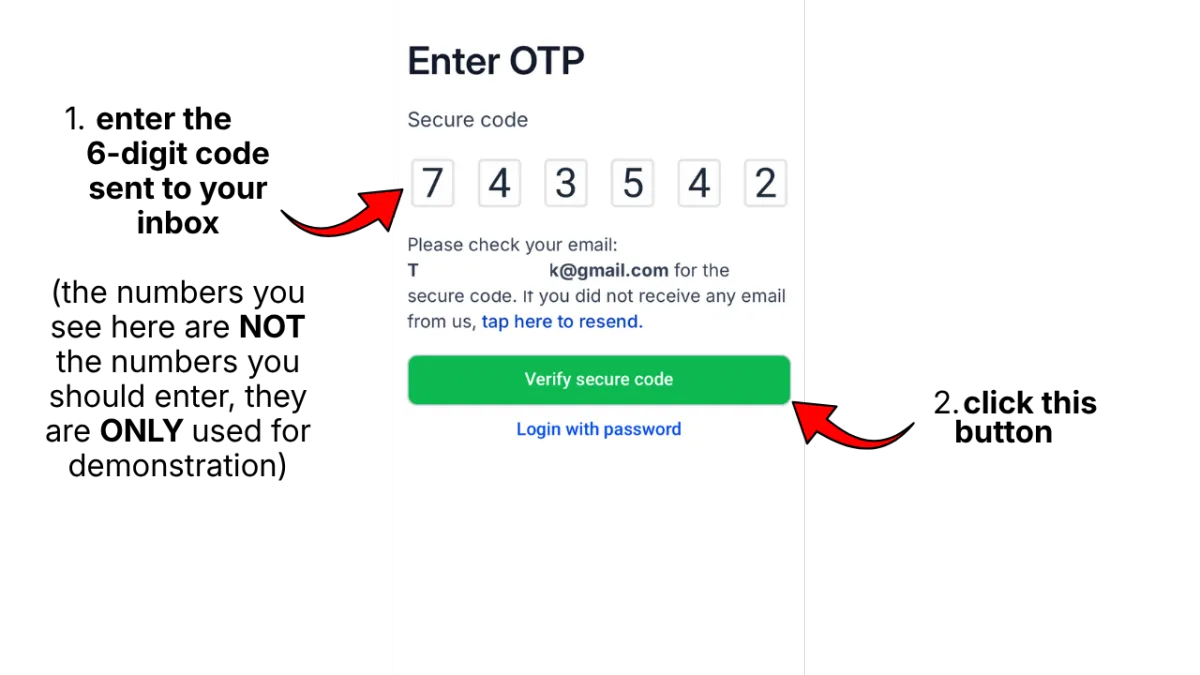
Go back to the login page you kept open.
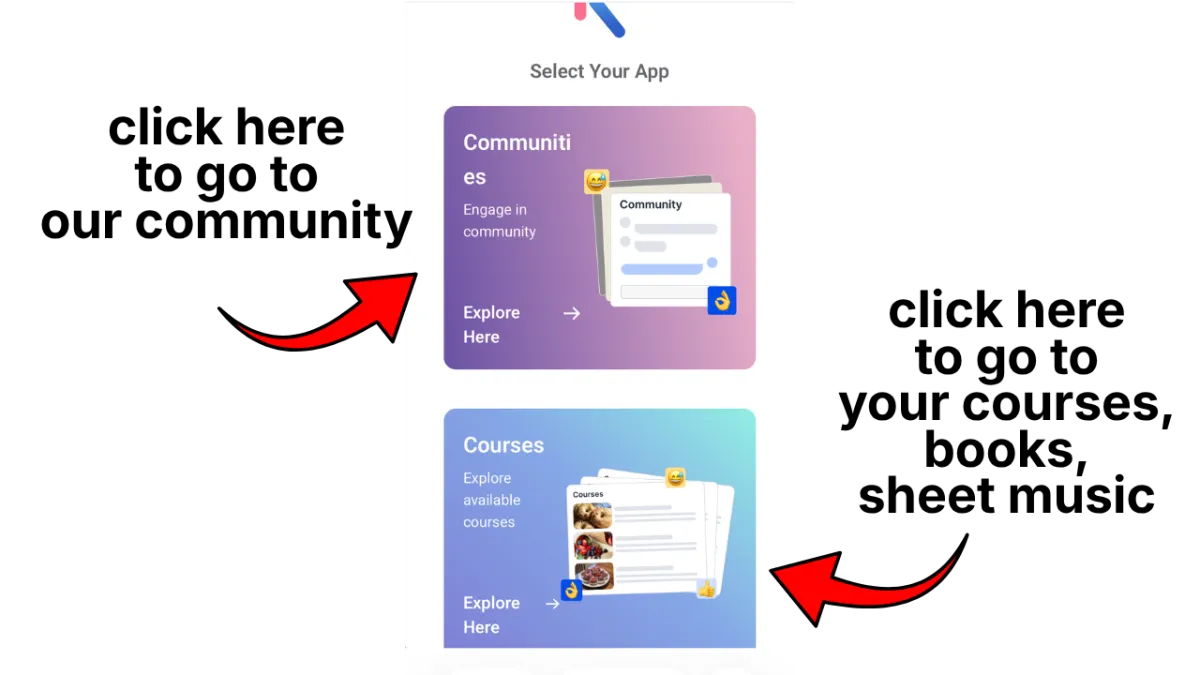
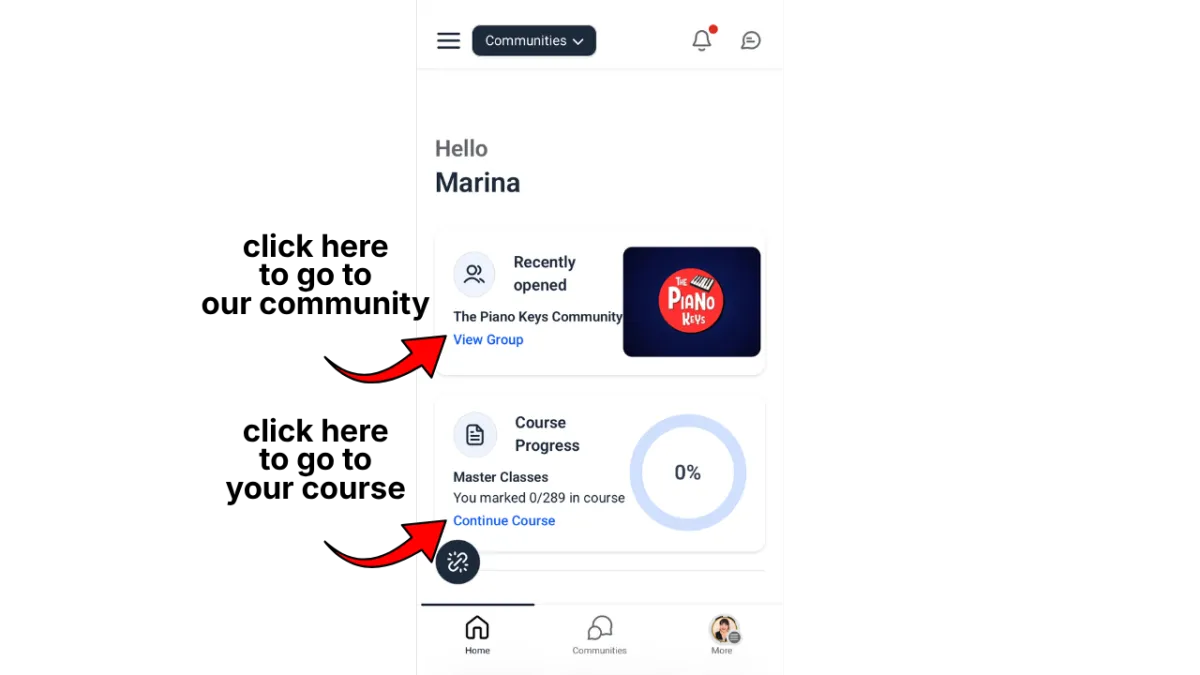
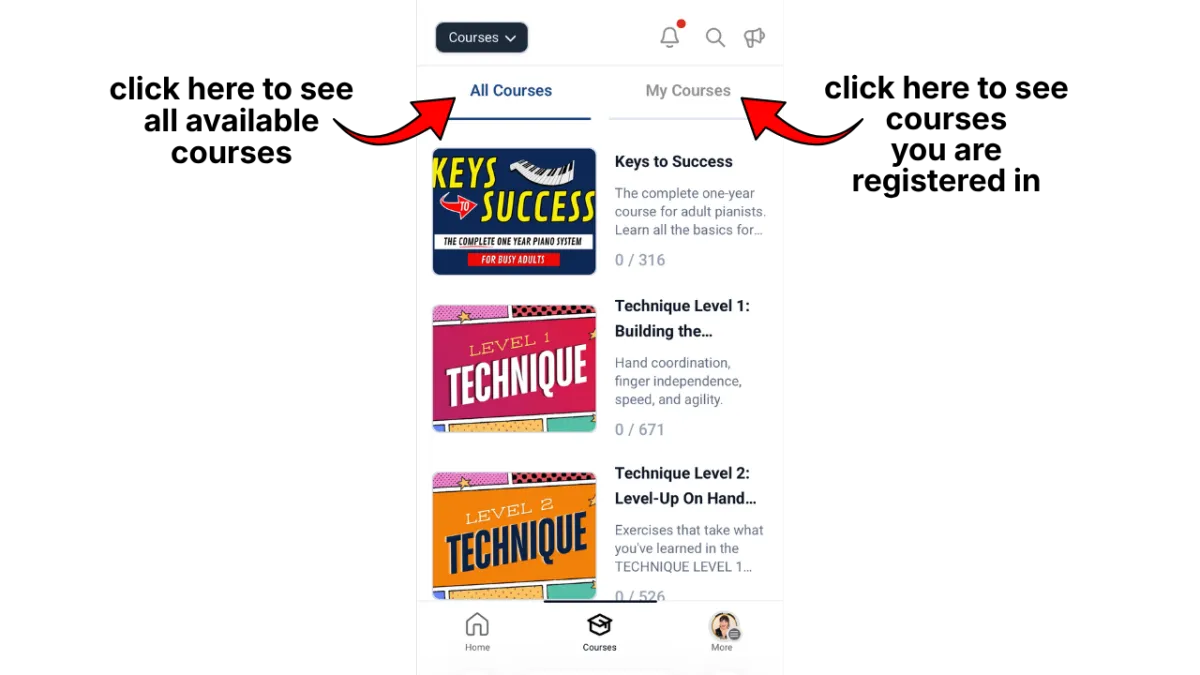
After you're logged in, you may see one of the following pages.
Please scroll through to see how to navigate them.
Still Stuck?
If you've gone through the steps above and you're still having trouble,
I'm happy to help.
IMPORTANT!
To help me solve the issue as quickly as possible:
👉please tell me exactly what steps you've taken and
👉include a screenshot of exactly what you're seeing when you get stuck.
Without a screenshot and specific description of what you've done that hasn't worked,
it's very hard for me to know what went wrong.
Screenshots make all the difference — they let me see your exact situation instead of guessing.
And descriptions tell me what you have done so that I can direct you to do something different if necessary.
Unfortunately I won't be able to give you any direction if all you write to me is
"help, I can't log in."
You can reach me at [email protected]
Thanks so much for your patience, and I look forward to seeing you inside!
Hi Awesome Pianist!
I know login pages can feel confusing sometimes,
especially because things on the internet seem to be constantly changing.
So I put together this simple, step-by-step guide to walk you through it.
Because everyone has a different device,
with different configurations, and different browsers,
your screen may look a little different from what you see here.
If you are unable to follow the directions on this page,
please have someone who is there with you (and can see what you're seeing) to help you through them.
IMPORTANT
There are multiple options shown on this page.
You will NOT follow the directions for each action,
only whatever applies to your individual situation.
PLEASE READ THE ENTIRE PAGE TO FIND
THE INSTRUCTIONS THAT WORK FOR YOU
Now let's get you logged in...
First, go to the login page: https://members.thepianokeys.com
You will see a page that looks like this or similar.
Follow the steps for either Option 1 or Option 2 on this page.
Option 1: Login with password
Option 2: Generate secure code
(note: Option 2 is easier, but some people prefer to use a password)
Option 1: Login with password
You will then see a page that looks like this or similar.
You may need to enter your password again.
If your password didn't work you will need to reset it.
Make sure that your email address is entered correctly.
Then click the words "Forgot password".
You will see a page that looks like this or similar.
KEEP THIS PAGE OPEN
Go check your email.
Look for a new email from The Piano Keys
with a link to reset your password.
Open that email. It will look something like this.
IF YOU DON'T SEE AN EMAIL
Go back to the login page that you kept open.
After you click the link in the email,
you will see a page that looks like this or similar.
DID YOU SEE A RED MESSAGE LIKE THE ONE BELOW?
Important: Write your new password down somewhere safe
— like a notebook, post-it, or the notes app on your phone —
so you have it ready the next time you want to log in.
If you do lose it, no worries! Just follow the steps above to set a new password.
Option 2: Generate secure code
You will then see this page or something similar.
Important: Keep this page open in your browser.
Don't close it — you'll come back to it in a moment.
Go to your email and look for a new email from The Piano Keys.
If you don't see the email right away, check your spam or junk folder, just in case.
*If you still don't see an email, go back to the login page and click "tap here to resend."
Open that email. Inside, you'll see a 6-digit number
(a code made up of 6 digits). It will look something like this.
Copy that number.
Go back to the login page you kept open.
After you're logged in, you may see one of the following pages.
Please scroll through to see how to navigate them.
Still Stuck?
If you've gone through the steps above and you're still having trouble, I'm happy to help.
IMPORTANT!
To help me solve the issue as quickly as possible:
👉please tell me exactly what steps you've taken and
👉include a screenshot of exactly what you're seeing when you get stuck.
Without a screenshot and specific description of what you've done that hasn't worked,
it's very hard for me to know what went wrong.
Screenshots make all the difference — they let me see your exact situation instead of guessing.
And descriptions tell me what you have done so that I can direct you to do something different if necessary.
Unfortunately I won't be able to give you any direction if all you write to me is
"help, I can't log in."
You can reach me at [email protected]
Thanks so much for your patience, and I look forward to seeing you inside!
Hi Awesome Pianist!
I know login pages can feel confusing sometimes,
especially because things on the internet seem to be constantly changing.
So I put together this simple, step-by-step guide to walk you through it.
Because everyone has a different device, with different configurations, and different browsers, your screen may look a little different from what you see here.
If you are unable to follow the directions on this page,
please have someone who is there with you (and can see what you're seeing) to help you through them.
IMPORTANT
There are multiple options shown on this page.
You will NOT follow the directions for each action,
only whatever applies to your individual situation.
PLEASE READ THE ENTIRE PAGE TO FIND THE INSTRUCTIONS THAT WORK FOR YOU
Now let's get you logged in...
First, go to the login page: https://members.thepianokeys.com
You will see a page that looks like this or similar.
Follow the steps for either Option 1 or Option 2 on this page.
Option 1: Login with password
Option 2: Generate secure code
(note: Option 2 is easier, but some people prefer to use a password)
Option 1: Login with password
You will then see a page that looks like this or similar. You may need to enter your password again.
If your password didn't work you will need to reset it.
Make sure that your email address is entered correctly.
Then click the words
"Forgot password".
You will see a page that looks like this or similar.
KEEP THIS PAGE OPEN
Go check your email.
Look for a new email from The Piano Keys with a link to reset your password.
Open that email. It will look something like this.
IF YOU DON'T SEE AN EMAIL
Go back to the login page that you kept open.
After you click the link in the email,
you will see a page that looks like this or similar.
DID YOU SEE A RED MESSAGE LIKE THE ONE BELOW?
Important: Write your new password down somewhere safe
— like a notebook, post-it, or the notes app on your phone —
so you have it ready the next time you want to log in.
If you do lose it, no worries! Just follow the steps above to set a new password.
Option 2: Generate secure code
You will then see this page or something similar.
Important: Keep this page open in your browser.
Don't close it — you'll come back to it in a moment.
Go to your email and look for a new email from The Piano Keys.
If you don't see the email right away, check your spam or junk folder, just in case.
*If you still don't see an email, go back to the login page and click "tap here to resend."
Open that email. Inside, you'll see a 6-digit number
(a code made up of 6 digits). It will look something like this.
Copy that number.
Go back to the login page you kept open.
After you're logged in, you may see one of the following pages.
Please scroll through to see how to navigate them.
Still Stuck?
If you've gone through the steps above and you're still having trouble,
I'm happy to help.
IMPORTANT!
To help me solve the issue as quickly as possible:
👉please tell me exactly what steps you've taken and
👉include a screenshot of exactly what you're seeing when you get stuck.
Without a screenshot and specific description of what you've done that hasn't worked,
it's very hard for me to know what went wrong.
Screenshots make all the difference — they let me see your exact situation instead of guessing.
And descriptions tell me what you have done so that I can direct you to do something different if necessary.
Unfortunately I won't be able to give you any direction if all you write to me is "help, I can't log in."
You can reach me at [email protected]
Thanks so much for your patience, and I look forward to seeing you inside!
Need assistance? [email protected]
© 2026 The Piano Keys
By visiting this page, you agree to terms and conditions & privacy policy .
This site is not a part of the Facebook website or Facebook Inc. Additionally, This site is NOT endorsed by Facebook in any way. FACEBOOK is a trademark of FACEBOOK, Inc.